How to Build a Simple Web Application Using HTML, CSS and JavaScript
Skills IT Academy Content Team
October 22, 2026
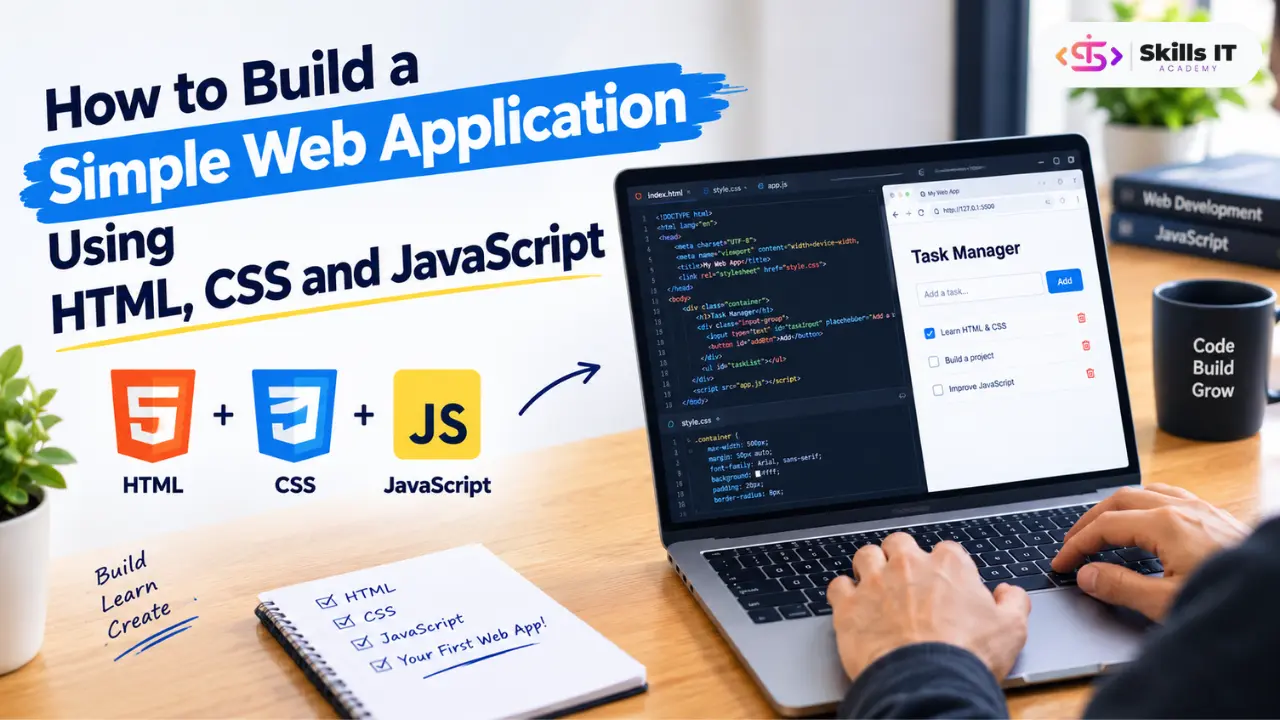
Have you ever wondered how websites allow users to enter information, click buttons, complete tasks, and interact with different features? These functionalities are often created using HTML, CSS, and JavaScript.
Whether you are a college student, a fresher, or an aspiring web developer, learning how to build a simple web application is an excellent way to begin your web development journey. Instead of only learning programming concepts theoretically, you can apply them by creating a working application.
HTML provides the structure of a webpage, CSS controls its appearance, and JavaScript adds interactivity. When these three technologies work together, you can build applications such as to-do lists, calculators, expense trackers, student registration forms, and other beginner-friendly projects.
For example, you can develop a to-do list application that allows users to add tasks, mark completed activities, and delete tasks they no longer need. This project helps you understand how web pages are structured, styled, and made interactive.
At Skills IT Academy, learners can explore practical programming and web development concepts to build a strong technical foundation and understand how web technologies are applied in real-world projects.
Let's understand how to build a simple web application using HTML, CSS, and JavaScript, step by step.
1. What Is a Web Application?
A web application is a software application that users can access through a web browser. It allows users to perform specific activities, interact with information, and complete tasks through a user interface.
Unlike a static webpage that mainly displays information, a web application often responds to user actions.
Examples of web applications include
- To-do list applications
- Online calculators
- Student management systems
- Expense tracking tools
- Online shopping platforms
- Appointment booking systems
- Student registration applications
For beginners, building a small web application is a practical way to understand how websites work and how different programming technologies interact.
You do not need to start with a complex application. A simple project with a few useful features can help you learn the fundamentals before progressing to advanced development.
2. Understand the Role of HTML, CSS, and JavaScript
Before starting the project, it is important to understand the purpose of each technology.
HTML: Structure of the Application
HTML stands for HyperText Markup Language. It defines the structure and content of a webpage.
HTML helps you create elements such as:
- Headings and paragraphs
- Input fields and forms
- Buttons and links
- Lists and content sections
- Containers for displaying information
For example, in a to-do list application, HTML provides the input field where users enter tasks, the button used to add tasks, and the list where tasks appear.
CSS: Design and Layout
CSS stands for Cascading Style Sheets. It controls how HTML elements look on the screen.
CSS helps you manage:
- Colors and backgrounds
- Fonts and text sizes
- Spacing and alignment
- Borders and rounded corners
- Responsive layouts
- Hover and visual interaction effects
For example, CSS can make your application easier to use by adding a clean layout, readable text, attractive buttons, and consistent spacing.
JavaScript: Functionality and Interactivity
JavaScript is a programming language that allows webpages to respond to user actions.
It can help you:
- Add new tasks dynamically
- Validate user input
- Respond to button clicks
- Mark tasks as completed
- Delete items from a list
- Update webpage content without reloading the page
In a to-do list application, JavaScript connects the input field and buttons with the actual task management functionality.
Together, HTML, CSS, and JavaScript form the foundation of many interactive web interfaces.
3. What Do You Need Before Building the Application?
You do not need expensive software or a complicated development environment to create your first web application.
The following tools are sufficient for this beginner project:
A computer: A desktop or laptop that can run a modern web browser and a text editor.
A code editor: You can use Visual Studio Code or another text editor to write HTML, CSS, and JavaScript.
A web browser: Google Chrome, Microsoft Edge, Firefox, or another modern browser can display and test your application.
Basic technical knowledge: Understanding HTML tags, CSS selectors, variables, functions, and basic JavaScript events will make the process easier.
For this tutorial, we will create a simple to-do list application that lets users add tasks, mark them as completed, and delete them.
The project will use HTML for the structure, CSS for the design, and JavaScript for the functionality.
4. Step 1: Create the Project Folder
First, create a new folder on your computer and name it simple-web-app.
Inside this folder, create the following three files:
- index.html
- style.css
- script.js
Each file has a separate responsibility.
index.html: Contains the application structure.
style. CSS: Defines the application's appearance.
script. JS: Implements the interactive features.
Keeping your code in separate files makes the project easier to understand, maintain, and improve as you learn more about web development.
Your project folder should look like this:
simple-web-app/├── index.html├── style.css└── script.js
Once you have created these files, you can start writing the application code.
5. Step 2: Build the HTML Structure
Open the index.html file in your code editor and add the following code.
<!DOCTYPE html><html lang="en"><head> <meta charset="UTF-8"> <meta name="viewport" content="width=device-width, initial-scale=1.0"> <title>My To-Do List</title> <link rel="stylesheet" href="style.css"> <script src="script.js" defer></script></head><body> <main class="app"> <h1>My To-Do List</h1> <form id="task-form">Enter a task.</label> <div class="task-entry"> <input type="text" id="task-input" placeholder="What do you need to do?" > <button type="submit">Add Task</button> </div> </form> <p id="task-count">0 tasks remaining</p> <ul id="task-list"></ul> </main></body></html>
Understanding the HTML Code
The <! The DOCTYPE html> declaration tells the browser to interpret the document as HTML5.
The <head> section contains page information, the character encoding, the responsive viewport setting, the page title, and links to the CSS and JavaScript files.
The <main> element contains the primary content of the application.
The <form> element groups the task input and submission button. Using a form also allows users to submit a task by pressing Enter.
The <ul> element provides a list where JavaScript will display the tasks.
The defer attribute ensures that the external JavaScript file runs after the HTML document has been parsed.
At this stage, the webpage has its basic structure. The next step is to make it visually appealing using CSS.
6. Step 3: Style the Application Using CSS
Open style.css and add the following code.
* { box-sizing: border-box;}body { margin: 0; min-height: 100vh; font-family: Arial, sans-serif; background: #f1f5f9; display: flex; justify-content: center; align-items: flex-start; padding: 50px 16px; color: #1e293b;}.app { width: 100%; max-width: 520px; background: #ffffff; padding: 28px; border-radius: 12px; box-shadow: 0 8px 24px rgba(0, 0, 0, 0.08);}h1 { margin-top: 0; text-align: center;}label { display: block; margin-bottom: 8px;}.task-entry { display: flex; gap: 8px;}input { flex: 1; min-width: 0; padding: 12px; border: 1px solid #cbd5e1; border-radius: 6px; font-size: 16px;}button { padding: 12px 16px; border: none; border-radius: 6px; background: #2563eb; color: white; font-size: 15px; cursor: pointer;}button:hover { background: #1d4ed8;}#task-count { color: #475569; font-size: 14px; margin-top: 20px;}#task-list { list-style: none; padding: 0; margin-bottom: 0;}.task-item { display: flex; align-items: center; gap: 10px; padding: 12px 0; border-bottom: 1px solid #e2e8f0;}.task-item span { flex: 1; overflow-wrap: anywhere;}.task-item. completed span { text-decoration: line-through; color: #64748b;}.task-item . delete-button { background: #dc2626; padding: 8px 10px;}.task-item . delete-button:hover { background: #b91c1c;}@media (max-width: 420px) { .app { padding: 20px; }.task-entry { flex-direction: column; }}
Understanding the CSS Code
The box-sizing: border-box rule makes element dimensions easier to manage by including padding and borders in their calculated width and height.
The body styles center the application horizontally and provide spacing around the content.
The .app class creates a white container with rounded corners, a maximum width, and a subtle shadow.
The .task-entry class places the input field and button beside each other on larger screens.
The .task-item class styles individual tasks, while .completed applies a line through tasks that have been marked as completed.
The media query adjusts the layout for narrow screens, allowing the input field and button to stack vertically on smaller devices.
These styles help create a simple interface that is readable and usable on both desktop and mobile screens.
7. Step 4: Add Functionality Using JavaScript
Now open script.js and add the following code.
const taskForm = document. getElementById("task-form");const taskInput = document. getElementById("task-input");const taskList = document. getElementById("task-list");const taskCount = document. getElementById("task-count");const tasks = [];function updateTaskCount() { const remaining = tasks. filter( task => !task.completed ).length; taskCount. textContent = `remainingtask{remaining === 1 ? "" : "s"} remaining`;}function renderTasks() { taskList.replaceChildren(); tasks. forEach((task, index) => { const item = document. createElement("li"); item.className = "task-item"; if (task.completed) { item.classList.add("completed"); } const checkbox = document. createElement("input"); checkbox.type = "checkbox"; checkbox. checked = task.completed; checkbox.setAttribute( "aria-label", `Mark ${task.text} as completed` ); checkbox. addEventListener("change", () => { task.completed = checkbox. checked; renderTasks(); }); const text = document. createElement("span"); text.textContent = task.text; const deleteButton = document. createElement("button"); deleteButton.type = "button"; deleteButton.class Name = "delete-button"; deleteButton.textContent = "Delete"; deleteButton.setAttribute( "aria-label", `Delete ${task.text}` ); deleteButton. addEventListener("click", () => { tasks. splice(index, 1); renderTasks(); }); item.append(checkbox, text, deleteButton); taskList.appendChild(item); }); updateTaskCount();}taskForm. addEventListener("submit", event => { event.preventDefault(); const text = taskInput.value.trim(); if (!text) { taskInput.focus(); return; } tasks.push({ text: text, completed: false }); taskInput.value = ""; taskInput.focus(); renderTasks();});renderTasks();
Understanding the JavaScript Code
Selecting HTML elements: The getElementById() method identifies the input field, form, task list, and task counter so JavaScript can interact with them.
Storing tasks: The tasks array temporarily stores task information, including the task description and whether it has been completed.
Handling form submission: The submit event listener runs when a user submits the form. The preventDefault() method prevents the browser from reloading the page.
Validating input: The trim() method removes unnecessary spaces from the beginning and end of the input. If the user submits an empty value, no task is added.
Displaying tasks: The renderTasks() function creates the required HTML elements and displays the current tasks.
Marking tasks as completed: Each checkbox updates the corresponding task's completion status. CSS then applies the completed-task style.
Deleting tasks: The Delete button removes the selected task from the array and refreshes the list.
Updating the task counter: The updateTaskCount() function calculates how many tasks remain incomplete.
The code uses textContent to display user-entered task descriptions instead of interpreting them as HTML. This is a safer approach when displaying user-provided text.
Together, these functions turn the HTML structure and CSS design into a working interactive application.
8. Step 5: Run and Test Your Web Application
After writing the code, save all three files.
Follow these steps to run your project:
- Open the project folder on your computer.
- Locate the index.html file.
- Open it in a modern web browser.
- Enter a task in the input field.
- Click Add Task or press Enter.
- Select the checkbox to mark a task as completed.
- Click Delete to remove a task.
- Resize the browser window to check the mobile layout.
Your application should allow you to add, complete, and delete tasks without reloading the page.
Testing is an important part of web development because it helps identify issues that may not be obvious while writing the code.
What Should You Test?
Check the following scenarios:
- Adding a task with valid text.
- Submitting an empty input field.
- Entering a task with spaces before or after the text.
- Adding multiple tasks.
- Marking different tasks as completed.
- Deleting one task while keeping the others.
- Checking the layout on a mobile-sized screen.
- Confirming that the remaining task count updates correctly.
If something does not work, open your browser's developer tools and check the Console tab for JavaScript errors.
Also confirm that the filenames are correct, all three files are saved in the same folder, and the CSS and JavaScript paths match the HTML references.
9. How Does the Application Work Internally?
Understanding the flow of information is just as important as writing the code.
The application follows a straightforward process:
- The user enters a task into the HTML input field.
- JavaScript captures the submitted value.
- The input is validated to ensure that it is not empty.
- The task is stored in the JavaScript array.
- The application creates and displays the task in the list.
- The user can mark the task as completed or delete it.
- JavaScript updates the stored data and refreshes the interface.
HTML provides the structure, CSS controls the presentation, and JavaScript manages the application's behavior.
This project demonstrates a basic client-side web application. The task data exists only in memory, so it will be lost when the page is refreshed or closed. A later improvement could introduce browser storage or a backend database to preserve information.
Understanding this distinction is useful when progressing from beginner projects to applications that need persistent data, user accounts, or server-side processing.
10. Common Mistakes to Avoid When Building a Web Application
Beginners often encounter similar problems when working with HTML, CSS, and JavaScript.
Incorrect file names: If your HTML references styles.css but the actual file is named style.css, the design will not load. Check that filenames and paths match.
Missing HTML element IDs: JavaScript may fail if an element ID in the code does not match the ID in the HTML document.
Forgetting to save files: Changes will not appear in the browser until the relevant files are saved and the page is refreshed.
Incorrect event handling: A missing or incorrectly written event listener can prevent buttons and forms from responding as expected.
Ignoring empty input: Validate user input before processing it to avoid adding blank tasks or invalid data.
Writing all code in one file: Keeping HTML, CSS, and JavaScript separate makes the project easier to understand and maintain.
Not testing different screen sizes: A page that works on a desktop may be difficult to use on a mobile device. Use responsive CSS and test the layout at different widths.
Ignoring browser errors: Developer tools can help identify missing files, syntax errors, and other problems quickly.
By understanding these common mistakes, you can improve your debugging skills and build applications more confidently.
11. How Can You Improve Your Web Application?
After completing the basic to-do list, you can extend it with additional features to practice more advanced concepts.
Here are some useful improvements.
Save tasks using localStorage: Store tasks in the browser so they remain available after refreshing the page.
Add task categories: Allow users to organize tasks into categories such as personal, academic, and professional.
Add due dates: Let users assign deadlines and identify upcoming tasks.
Create search and filter options: Allow users to find specific tasks or display only completed or pending items.
Improve accessibility: Add clear labels, keyboard-friendly controls, visible focus indicators, and appropriate accessibility attributes.
Use a backend database: Explore a server-side technology and database when you need to store information across devices or users.
Deploy the application: Learn how to publish a static web application using a suitable hosting service so others can access it online.
Make one improvement at a time. This approach allows you to understand each new concept and test its impact before adding more functionality.
12. Why Should Beginners Build Practical Web Development Projects?
Learning HTML, CSS, and JavaScript through practical projects helps you connect theoretical knowledge with actual implementation.
Building an application can help you develop several useful skills:
- HTML fundamentals: Structuring pages with appropriate elements.
- CSS styling: Creating organized, readable, responsive interfaces.
- JavaScript programming: Using variables, arrays, functions, conditions, and events.
- DOM manipulation: Updating webpage elements dynamically.
- Problem-solving: Identifying errors and implementing solutions.
- Debugging: Using browser tools to understand unexpected behavior.
- Project organization: Managing multiple files and maintaining readable code.
For students and freshers, small projects can also become useful examples of practical learning when preparing a technical portfolio.
Before showcasing a project, make sure you understand how it works, document its features, and explain the technical decisions you made. You can later share the source code through GitHub or publish a live demonstration, provided you are comfortable sharing the project publicly.
At Skills IT Academy, learners interested in developing their technical foundation can explore relevant IT training options and evaluate how practical exercises, coding sessions, and project-based learning fit their career goals.
When choosing a training program, review the current syllabus, hands-on project opportunities, trainer support, and the technologies covered.
Frequently Asked Questions
1. Can I build a web application using only HTML, CSS, and JavaScript?
Yes. You can build many simple client-side web applications using HTML for structure, CSS for styling, and JavaScript for functionality. Applications that require shared data, authentication, or server-side processing may also need a backend and database.
2. Is HTML, CSS, and JavaScript enough for beginners to learn web development?
Yes. These technologies provide a strong foundation for front-end web development. After understanding the fundamentals, you can explore responsive design, APIs, Git, modern JavaScript features, frameworks, and backend technologies.
3. What is the easiest web application to build as a beginner?
A to-do list, calculator, digital clock, quiz application, or simple expense tracker can be a good starting point. These projects help you practice basic programming concepts and understand how user interactions work.
4. Do I need a database to create a simple web application?
No. A basic application can store temporary information in JavaScript variables and arrays. Browser storage such as localStorage can preserve suitable data locally, while a backend and database are useful when information needs to be stored centrally or shared across users and devices.
5. How long does it take to build a simple web application?
The time required depends on your existing knowledge, the application's features, and how much time you spend testing and improving it. A small application may be completed in a few hours by someone familiar with the basics, while beginners may need additional practice.
6. Can I add my web development project to GitHub?
Yes. You can upload your HTML, CSS, and JavaScript files to a GitHub repository. Include a README explaining the application's purpose, features, setup instructions, and technologies used. Avoid publishing credentials or sensitive information.
7. How can I make my web application available online?
You can publish a static HTML, CSS, and JavaScript application using a hosting service that supports static websites. Follow the hosting provider's instructions to upload or connect your project files and obtain a public URL.
8. What should I learn after building my first web application?
Start by improving your JavaScript fundamentals, responsive design, form validation, DOM manipulation, and browser debugging skills. You can then explore APIs, Git and GitHub, data persistence, accessibility, and suitable front-end or backend frameworks.
Conclusion
Building a simple web application using HTML, CSS, and JavaScript is a practical way to begin learning web development.
HTML creates the structure of the application, CSS makes the interface visually appealing, and JavaScript adds functionality that responds to user actions. By combining these technologies in a project such as a to-do list, you can practise writing code, managing data, handling events, and testing application behaviour.
Start with a small project, understand each part of the code, and gradually introduce new features. As your skills develop, you can explore browser storage, APIs, backend development, databases, and deployment.
For students and freshers, practical project work can help build confidence and provide examples of technical skills to discuss during interviews.
If you are exploring IT training opportunities, Skills IT Academy can be a starting point for researching relevant learning pathways. Choose a program that aligns with your goals and provides opportunities to practice programming concepts through practical projects.